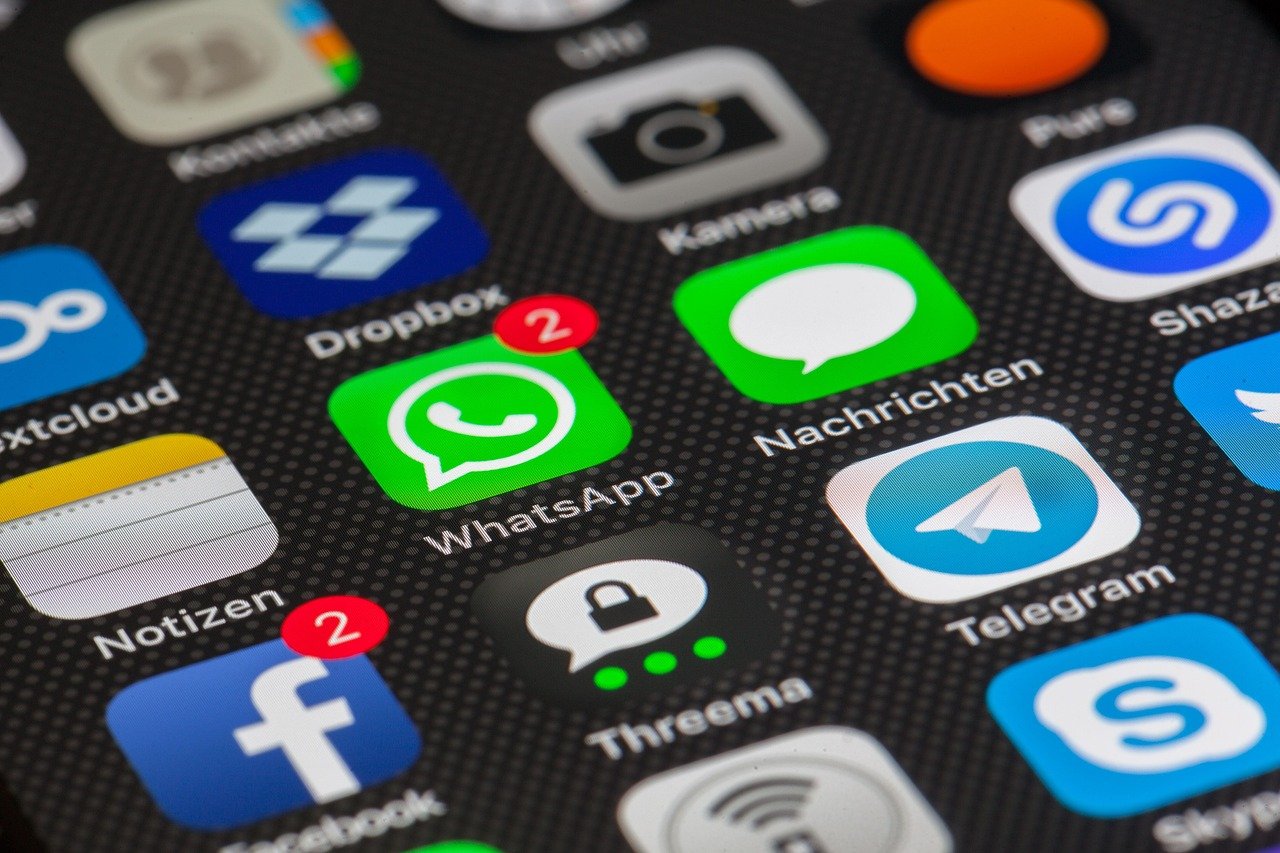
A phone can be useful and still interrupt you too often. If a game, shopping app or social network keeps sending alerts, you can usually turn off its notifications without deleting the app or closing your account.
This guide shows how to adjust notifications one app at a time on iPhone and Android. Menu names can vary by software version and Android phone maker, but the Settings app is a reliable place to start.
Before you begin
Have your phone unlocked and decide which alerts you want to keep. For example, you might want to quiet a shopping app while leaving calls, messages or security alerts on. Changing notification settings affects how alerts appear on your phone; it does not unsubscribe you from emails or stop an app from sending information inside the app.
Turn off notifications on iPhone
- Open Settings. Find the gray gear icon on your Home Screen or in the App Library.
- Tap Notifications. Scroll through the list of apps or look for the app whose alerts you want to change.
- Select the app. Its notification settings will show what kinds of alerts are available.
- Turn off Allow Notifications to stop all notifications from that app. If you want to keep some alerts, leave this switch on and adjust the alert options shown on the screen instead.
- Review where alerts appear. When notifications are allowed, you can choose options such as whether they appear on the Lock Screen, in Notification Center or as banners. The choices shown can depend on the app.
- Return to the Home Screen. Your changes are saved in Settings; you do not need to find a separate Save button.
If you are unsure whether to silence everything, try turning off only the alert locations that bother you. For example, you may prefer to keep an alert in Notification Center but stop it from appearing as a banner. The exact options available depend on the app and iOS version.
Turn off notifications on Android
- Open Settings. Tap the gear icon in your app list or pull down the Quick Settings panel and tap its gear.
- Open the notification settings. Look for Notifications, then an option such as App notifications or App settings. The wording and menu route can differ by phone maker and Android version.
- Find the app. If the app is not immediately visible, look for a list of apps or use Settings search to search for the app’s name or “notifications.”
- Tap the app you want to quiet. Its notification controls may include a main on/off switch and separate notification categories.
- Turn off notifications for the app, or switch off only the categories you do not want. For instance, an app may let you keep account or delivery updates while silencing promotional alerts. Categories vary by app.
- Go back or close Settings. The change is normally applied as soon as you make it.
On some Android phones, you can also press and hold a notification from the app, then tap a settings or manage-notifications control. This can take you directly to options for that alert. The wording and availability vary, so use Settings if you cannot find the control.
Tips for choosing what to silence
- Try app-specific controls first. If an app has its own notification preferences, it may let you disable marketing messages while keeping useful updates. Look in the app’s settings for Notifications or Preferences.
- Keep important alerts in mind. Before turning off everything, consider whether the app sends sign-in, payment, appointment or account-security notices you rely on. If you are not sure, disable only the alert types you recognize as unnecessary.
- Notification settings are not the same as Do Not Disturb. App settings control which alerts an app may send or how they appear. Do Not Disturb is a temporary mode for reducing interruptions across the phone, with rules that may allow selected people or apps through.
- Check previews separately if privacy is your concern. Turning off an app’s alerts is different from hiding message text on the Lock Screen. Look at the phone’s notification preview options if you want alerts to remain visible without showing their contents.
- Revisit the setting if something goes quiet. If you later miss an alert, return to the same app’s notification page and turn the relevant option back on.
A quieter phone, one app at a time
You do not have to choose between every alert and no alerts at all. Start with the app that interrupts you most, change its settings, and see how the phone feels. If you miss something useful, you can adjust the setting again.