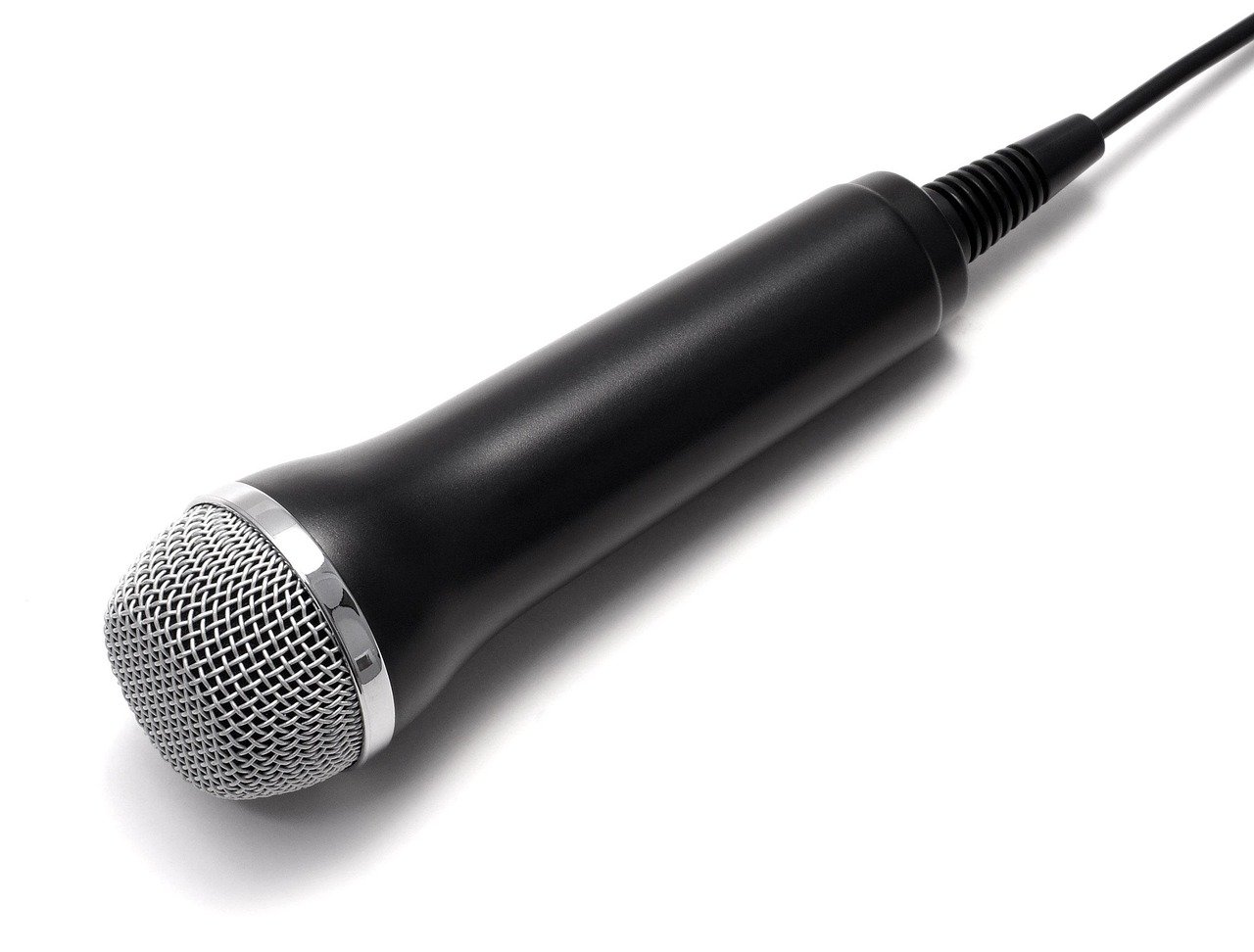
A silent microphone can make a video call frustrating, but the cause is often a setting or a connection rather than a broken device. Work through these checks in order; after each change, speak and see whether the app’s microphone meter responds.
The steps apply broadly to video-calling apps on computers and phones. Menu names vary, so look for settings labeled “Audio,” “Microphone,” or “Permissions.”
Steps to troubleshoot your microphone
- Check mute switches. In the call, make sure your microphone is not muted. Also check for a mute button or switch on your headset, keyboard, or microphone. Some headsets have their own mute control.
- Choose the microphone you intend to use. Open the app’s audio settings and find the microphone or input-device menu. Select your headset or computer’s built-in microphone, then speak. If the app shows an input meter, check whether it moves. A device name may appear even when that device is not the one you are speaking into.
- Check the connection. For a wired headset, unplug it and reconnect it firmly, then reselect it in the app. For a Bluetooth headset, confirm it is connected to the device you are using for the call. If the sound still does not register, try the computer or phone’s built-in microphone as a comparison.
- Allow microphone access. If you joined through a web browser, check the site’s permissions in the browser’s address bar or site settings and allow microphone access for the calling site. If you use a desktop or mobile app, check your device’s privacy settings and allow that app to use the microphone. After changing a permission, return to the call and reload the page or reopen the app if needed.
- Check the device’s input settings. Open your computer or phone’s sound settings and make sure the intended microphone is selected and not disabled. Speak and look for an input-level indicator if one is available. If it responds there but not in the call, focus on the calling app’s selection or permissions.
- Close other apps that may be using the microphone. Quit other calling, recording, or voice-chat apps, then leave and rejoin the call. If the problem continues, restart the browser or calling app and test again.
- Run a short test. Use the calling app’s built-in audio test or ask someone on the call to confirm they can hear you. If possible, make a brief recording with another app. This can help tell whether the issue is limited to one calling app or affects the device more generally.
Things to know
Change one setting at a time and test again; that makes it easier to spot what fixed the problem. If the microphone works in other apps but not in one call, check that app’s input selection and permissions first. If it fails everywhere, try another microphone or device if available. Avoid granting microphone access to sites or apps you do not recognize.
Once the app is using the right microphone and has permission to access it, a quick test before your next call can save time. If none of these checks helps, consult the support information for your device or calling app.