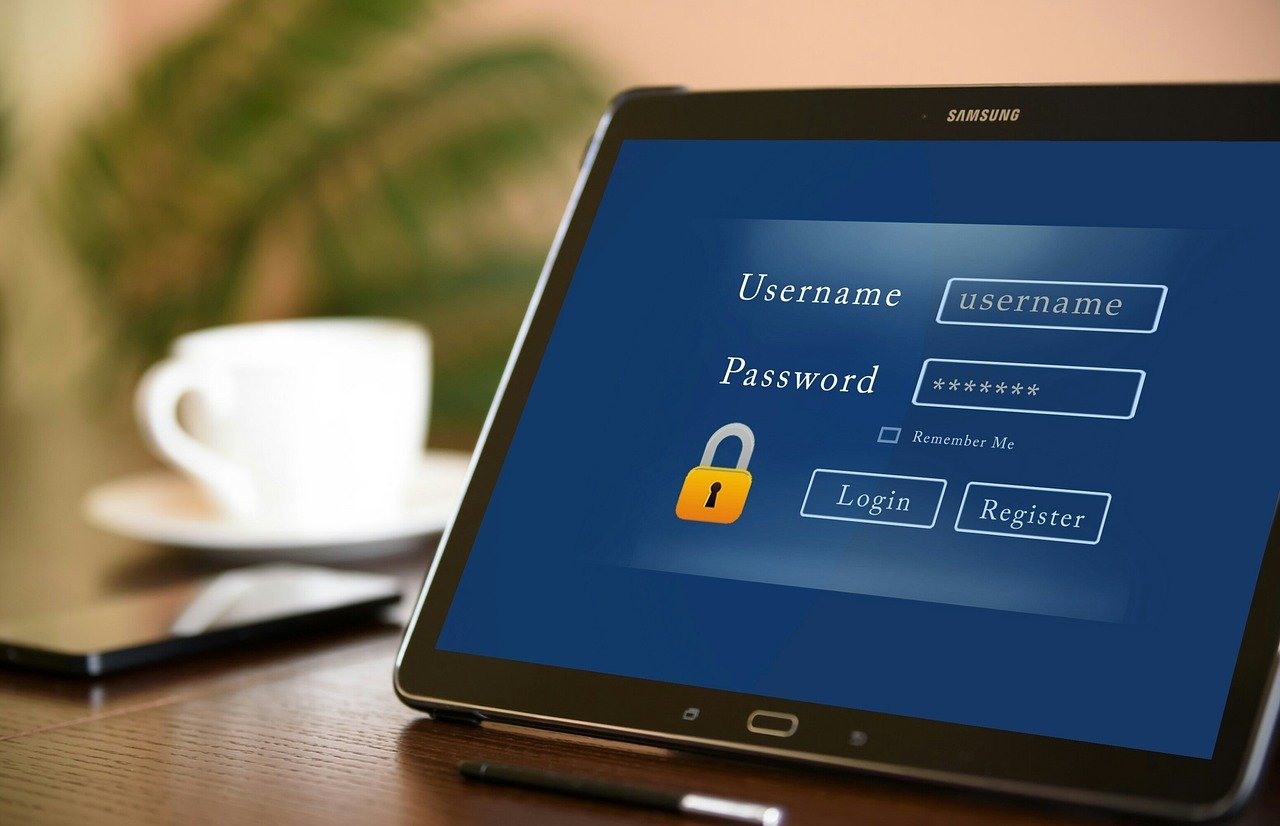
If you reuse passwords or keep them in notes, a password manager can make everyday sign-ins easier to organize. It stores your logins in an encrypted vault and can fill them in when you visit a website or app.
This beginner’s guide explains how to choose a manager, secure its account, and move existing logins without leaving an exposed password file behind. Features and menus vary, so check the instructions for the specific manager you choose.
What you will need
- A phone or computer you control, with its operating system and browser up to date.
- An email address you can access to create the account and receive security notices.
- A safe place to keep any recovery instructions or codes the manager provides.
You can use a password manager built into a browser or device, or choose a separate service. Compare how it works on your devices, what recovery options it offers, and whether you can turn on multifactor authentication (MFA)—a second proof of identity, such as an authenticator-app code. Use the provider’s official website or app store listing, not an unfamiliar download link from an email or advertisement.
Steps
- Choose one manager and confirm how it works on your devices. Read its official setup and recovery instructions first. Check whether it supports the phone, computer, and browsers you actually use. Make sure you understand how to get back into the vault if you lose a device or forget the master password.
- Create the account with a unique, strong master password. This is the password that protects the vault, so do not reuse one from another account. Choose a long password or passphrase that is difficult to guess. If you are worried about remembering it, use the manager’s guidance for storing recovery information safely; do not put the master password in an ordinary note or email.
- Turn on MFA if the manager offers it. Follow its official instructions and save any recovery codes somewhere separate from the device you normally use to sign in. Recovery codes can help if you lose access to your second factor, so protect them as carefully as a password.
- Install the official app or browser extension, then sign in. Download it through the provider’s official site or your device’s app store. If a browser asks to save passwords, decide which tool you want to use as your main manager; using several overlapping vaults can make it harder to know where the latest login is stored.
- Add a few important logins first. Start with your email account and other accounts you use often. You can add logins manually or use the manager’s import feature. For each entry, check that the website address and username are correct. A password manager may offer to create a new, unique password when you change one on a website.
- Move remaining passwords only through the manager’s documented process. Some browsers and managers can transfer saved logins directly; others use an exported file. Check the official instructions before starting, because steps differ. If an export creates a CSV or other plain-text file, treat it as readable by anyone who gets the file. Keep it on a device you control, do not email or upload it to a shared location, import it promptly, then remove it from the device and empty the trash or recycle bin. Avoid doing this on a public or shared computer.
- Test the vault before relying on it. Sign in to a few sites by opening them yourself and letting the manager fill the login. Check that each entry matches the correct site and account. If autofill offers a login for an unexpected website, pause and check the address rather than accepting it automatically.
- Change reused or weak passwords, starting with your most important accounts. Visit each service directly, sign in, and use its account settings to change the password. Let the manager generate and save a different password for each account. Prioritize your email, financial, and other sensitive accounts. Turn on MFA for those services where available.
- Review recovery and sharing settings. Confirm that your recovery email and phone number are current, and learn what the provider says to do if you lose access. If you share a vault or account with someone, use the manager’s built-in sharing feature and understand what access it grants; do not send passwords in an ordinary message.
Tips and things to know
A manager helps, but it does not make every account invulnerable. Unique passwords limit the damage when one service is breached, but you should still use MFA where available, keep devices updated, and be alert to fake sign-in pages. CISA recommends strong, unique passwords and the use of a password manager.
Keep your vault’s recovery plan realistic. A manager may not be able to reset a forgotten master password in the same way an email service can reset a login. Read its recovery policy before you need it, and keep recovery codes in a secure place that you can still reach if your phone is lost.
Do not rush a bulk import. Imported records can contain duplicates, outdated logins, or entries for sites you no longer use. Check important entries individually. If a transfer fails or looks incomplete, follow the manager’s help instructions rather than making repeated exports that leave more password files behind.
Once your manager is set up, add new logins as you create them and update old ones over time. A few careful checks at the start can make signing in simpler while giving each account its own password.