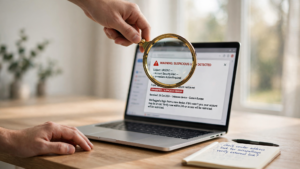
This short guide shows how to use an AI assistant to draft alt text (the short text that replaces images for screen‑reader users), then how to check and edit that text so it’s accurate, useful and safe to publish. Good alt text makes your site more accessible and can prevent misunderstandings; official accessibility rules require usable text alternatives when images convey content or function.
Follow the steps below to create alt text efficiently without letting automatic descriptions replace human judgment.
What you will need
- A copy of the image file or the image URL.
- An AI tool that accepts a short prompt (chat or image‑description feature) — or a text editor if you prefer to write from scratch.
- A short note explaining why the image appears where it does (the image’s purpose in the page or post).
- An accessibility checker or browser extension (optional but helpful) to find images missing alt text.
Steps
- Decide the image’s purpose. Ask yourself: is the image decorative, functional (a button or link), or content-bearing (photo, chart, screenshot)? If decorative, you should mark it as decorative (alt=””) so screen readers skip it. ([section508.gov](https://www.section508.gov/create/alternative-text/?utm_source=openai))
- If the image is meaningful, write one sentence that answers: “Why is this image here?” Keep that sentence short — 1–2 lines. Example: “Shows last quarter’s sales trend to support the paragraph.”
- Ask the AI to draft alt text. Give three things: (A) a brief factual description of what’s visible, (B) the image’s purpose (your sentence from step 2), and (C) a length limit (e.g., 100 characters). Example prompt: “Describe this photo in one short sentence: an aerial shot of a small community garden with raised beds and three people planting. Purpose: show volunteer turnout at the event. Keep under 100 characters.” Use the AI draft only as a starting point.
- Check the draft for accuracy. Verify names, numbers, or any sensitive detail. Don’t publish alt text that guesses people’s characteristics (age, race, disability) or personal data. Section 508 guidance warns against relying on default or AI‑generated text without human review. ([section508.gov](https://www.section508.gov/create/alternative-text/?utm_source=openai))
- Edit for purpose and brevity. Make the alt text describe the information the image adds to the page (not every visual detail). If the image contains readable text, transcribe that text exactly in the alt text. If a chart is complex, write a short summary and add a link or caption with the full data. ([section508.gov](https://www.section508.gov/create/alternative-text/?utm_source=openai))
- Add the alt text to your image field and test with a screen‑reader simulator or accessibility checker. If your CMS supports an accessibility checker, run it to find missed images. If the image is a link or button, make the alt text describe the link’s function (e.g., “Open full report (PDF)”). ([webaim.org](https://webaim.org/resources/quickref/?utm_source=openai))
Tips & Warnings
- Keep it useful, not decorative: If the surrounding text already says the same thing, short alt text or an empty alt attribute may be correct. ([webaim.org](https://webaim.org/techniques/alttext/?utm_source=openai))
- Watch privacy: Don’t upload private documents, IDs, medical images, or photos of people in sensitive situations to public AI services.
- Be concise: Screen readers read alt text aloud — short, purposeful descriptions are easier to use than long visual tours. Microsoft and other guidance advise avoiding phrases like “image of” or repeating surrounding text. ([support.microsoft.com](https://support.microsoft.com/en-us/accessibility/office-accessibility/everything-you-need-to-know-to-write-effective-alt-text?utm_source=openai))
- Complex visuals: For detailed diagrams, use a brief alt text plus a longer description or data table elsewhere on the page. ([webaim.org](https://webaim.org/techniques/alttext/?utm_source=openai))
Using AI to draft alt text can save time, but always treat the AI output as a draft — not the final copy. A quick human check makes the difference between usable accessibility and misleading automation.
With a little practice this workflow will let you add accurate, helpful image descriptions quickly and responsibly. Happy describing — and thank you for making your content easier for everyone to use.