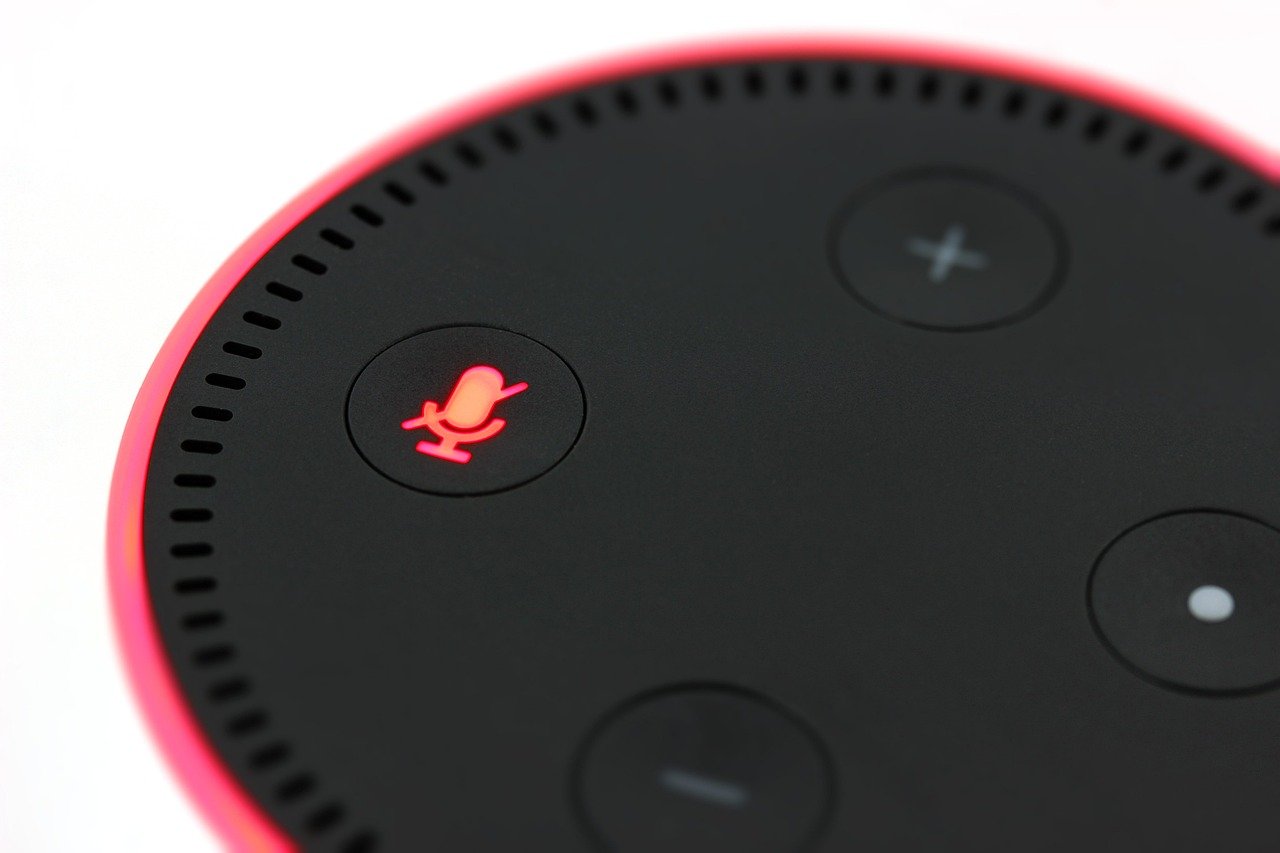
Voice recognition (called voice profiles, Voice Match, or “Recognise My Voice”) lets your smart assistant tell who is speaking and return personal results like calendar items, playlists, or account‑specific reminders. Setting it up takes a few minutes in each platform’s app and improves convenience while giving you control over what information is personalized. ([blueprints.amazon.com](https://blueprints.amazon.com/help/terms?page=terms-of-use&utm_source=openai))
What you will need
One of the following: an Alexa‑enabled Echo with the Alexa app, a Google Assistant‑enabled speaker or Nest/Google Home device with the Google Home app (or Assistant app), or an iPhone/iPad (and a HomePod for shared‑home voice recognition). Make sure each device and app are updated and that you are signed into the correct account. ([androidcentral.com](https://www.androidcentral.com/how-set-amazon-alexa-voice-profiles-so-it-knows-its-you-talking?utm_source=openai))
Steps
-
Alexa (Echo devices)
- Open the Alexa app and sign into the Amazon account the Echo uses.
- Go to More > Settings > Your Profile & Family, select your profile, then choose “Recognized Voices” or “Add Your Voice”.
- Follow the prompts in the app or say to an Echo device: “Alexa, learn my voice,” and read the phrases Alexa asks for until the profile is created.
- Optionally enable Automatic Voice Recognition so Alexa can improve the profile over time.
Tip: Voice profiles link to Amazon accounts, so household members who want personalized results usually need their own Amazon account or to be added via Amazon Household features. ([androidcentral.com](https://www.androidcentral.com/how-set-amazon-alexa-voice-profiles-so-it-knows-its-you-talking?utm_source=openai))
-
Google Assistant (Voice Match)
- Open the Google Home app (or Assistant settings on your phone) and sign into the Google Account you want linked to your voice.
- Tap your profile picture > Assistant settings > “Hey Google & Voice Match” (or Home settings > Google Assistant > Voice Match for home devices).
- Choose the device(s) to enroll, then follow the on‑screen prompts to say a few phrases so Assistant can build a voice model for you.
- When done, Voice Match will allow personal results (calendar, commute, contacts) only for recognized voices on that home’s devices.
Note: Voice Match stores models in your Google Account and on the devices you enable; you can remove those audio clips through your Google Account activity controls. ([support.google.com](https://support.google.com/googlehome/answer/7320960?hl=en-AS&utm_source=openai))
-
Apple Siri (iPhone / HomePod)
- On iPhone or iPad: open Settings > Apple Intelligence & Siri (or Siri & Search on older iOS) and enable “Listen for ‘Hey Siri'”; follow the prompts to record the setup phrases so Siri learns your voice.
- For HomePod, open the Home app, add the HomePod if needed, then enable voice recognition so Siri can recognise multiple voices in the household (Home app > Home settings > People > enable Recognise My Voice where shown).
- If Siri has trouble, retrain by turning the feature off and on again and repeating the phrase prompts; also check microphone access and language settings.
Apple’s HomePod voice recognition is tied to Home app members and Apple IDs, giving each invited person personalised music and personal requests. ([support.apple.com](https://support.apple.com/guide/iphone/change-siri-settings-iphc28624b81abc/27/ios/27?utm_source=openai))
Tips & Warnings
- Purchases and privacy: Voice profiles can enable personalized shopping or results. On Alexa you can require a voice code or disable voice purchasing; on Google, personal results depend on Voice Match setup; both platforms store voice data and give tools to delete recordings. Review the assistant’s privacy settings after setup. ([blueprints.amazon.com](https://blueprints.amazon.com/help/terms?page=terms-of-use&utm_source=openai))
- Separate accounts: For full personalization on Alexa, household members often need separate Amazon accounts (or to be added via Amazon Household). Google and Apple rely on individual Google and Apple IDs respectively. ([androidcentral.com](https://www.androidcentral.com/how-set-amazon-alexa-voice-profiles-so-it-knows-its-you-talking?utm_source=openai))
- Device placement matters: microphone noise, distance, and room layout affect recognition. If a device regularly misidentifies you, retrain in a quiet location and speak clearly during prompts. ([blog.google](https://blog.google/products-and-platforms/products/assistant/more-ways-fine-tune-google-assistant-you/?utm_source=openai))
Setting up voice recognition takes only a few minutes per platform and makes voice control more personal and useful. If one assistant keeps failing to recognize you, delete and recreate the voice profile and check that the app and device firmware are current. Enjoy the added convenience — and remember you can always turn personalization off later if you change your mind. ([androidcentral.com](https://www.androidcentral.com/how-set-amazon-alexa-voice-profiles-so-it-knows-its-you-talking?utm_source=openai))